This is default featured slide 1 title

Go to Blogger edit html and find these sentences.Now replace these sentences with your own descriptions..

This is default featured slide 2 title

Go to Blogger edit html and find these sentences.Now replace these sentences with your own descriptions..

This is default featured slide 3 title

Go to Blogger edit html and find these sentences.Now replace these sentences with your own descriptions..

This is default featured slide 4 title

Go to Blogger edit html and find these sentences.Now replace these sentences with your own descriptions..

This is default featured slide 5 title

Go to Blogger edit html and find these sentences.Now replace these sentences with your own descriptions..

Showing posts with label PC Tips and Tricks. Show all posts

Tuesday, 5 June 2012

Minimum System Requirements to Install Windows 8 Release Preview


Windows 8 Release Preview is a prerelease version of Windows 8 that focuses on people and apps and gives you powerful new ways to use social technologies to connect with the people who are important to you. It's Windows reimagined. Windows 8 Release Preview is built on the rock-solid foundation of Windows 7 and has the security and reliability features you expect from Windows. It’s fast, and it’s made to work on a variety of form factors—especially the new generation of touch devices.
Windows 8 Release Preview works great on the same hardware that powers Windows 7:

System Requirements:

  • Processor: 1 gigahertz (GHz) or faster
  • RAM: 1 gigabyte (GB) (32-bit) or 2 GB (64-bit)
  • Hard disk space: 16 GB (32-bit) or 20 GB (64-bit)
  • Graphics card: Microsoft DirectX 9 graphics device with WDDM driver
  • Additional requirements to use certain features:
  • To use touch, you need a tablet or a monitor that supports multitouch.
  • To access the Windows Store and to download and run apps, you need an active Internet connection and a screen resolution of at least 1024 x 768.
  • To snap apps, you need a screen resolution of at least 1366 x 768.
  • Internet access (ISP fees might apply)

Saturday, 12 November 2011

Download YouTube Videos Without Using Any Software

Download YouTube Video

Many users use YouTube to view the latest videos. However, YouTube does not allow users to download video from the site. There are lot lot of software which allow users to download YouTube videos, both through a desktop software and a online service.Whenever we watch YouTube videos, the video is downloaded and played back from our local cache

Now i'm going to show you a trick which will allow you to copy and store YouTube videos without any additional software, and will not cost you additional bandwidth.


Steps To Download/Copy YouTube Video to Your PC

Before performing the steps given below, make sure the hidden files are visible in Windows explorer. Make your hidden folders/files unhide in windows.

Step 1:
Browse and watch YouTube in any web browser.

Step 2:
If you like a video you watched, do not close the browser window or tab. In order to copy the downloaded video you need to keep the browser window open.


Step 3:
Navigate to the following location:
          
Windows XP: C drive:\Documents and Settings\USER_NAME\Local Settings\Temp

          Windows Vista or Windows 7: C:\Users\USER_NAME\AppData\Local\Temp


Step 4:
In the temp folder look for file which has the name "fla*Some_Number*.tmp", for example: fla128.tmp or fla36.tmp.


Step 5: 
The fla*.tmp file is the video that was downloaded to your local cache. Copy the file to another folder and rename it to "Whatever_You_Like .flv"


That’s It, using the above steps you can download or store a video from YouTube without any software. You can use a  FLV player which can play all codes to watch the downloaded video or even play FLV files in Windows Media Player using a FLV codec.

Note: Sometime you will get an error while copying and pasting the fla*.tmp file to another folder, you can download a software called Unlocker to release locks on the file.


Sunday, 6 November 2011

Make Your Computer Boot/Start Faster - Windows XP Trick


Does your computer take a long time to boot up? Don't worry. You can Make Your Computer Faster to boot up. Installing too much unnecessary software is a main reason for your slow computer. So first I suggest you to uninstall the unnecessary software that take time to boot up.

Most of the user stand by their computer instead of turning it off. Obviously their computer's are slow to boot up. I am giving you a very amazing trick that will remove the boot time of your computer.


To remove the boot time of your computer, you have to save your data and tasks before closing your computer. This process is known as Hibernation. It will just take almost 1 GB (According to your computer) or more space to hibernate your computer instead of stand by. It will not take any electricity while it is hibernated. So first you have to enable Hibernation in your computer.


Make Your Computer Faster With Hibernation

1. Go to Control Panel and double click on "Power Options".


2. Now click to the "Hibernation" tab and tick the "Enable hibernation" box.


Click the Apply or OK button to make the changes take effect.

Now your hibernation is enabled. You just want to hibernate your computer.

3. Close all the programs and windows and press Alt + F4. Then a shutdown box will appear. Now you will hold down the Shift button and there will be written "Hibernate" instead of standby. 


Click hibernate and your computer will be hibernated.


Make Computer Faster


Computer are fast but we made our computer slower by installing many unuseful programs in it. Mostly those computers are slow whose Hard Drives, RAM and CPU Speed is less. We can make our computer a little bit faster with some tricks. There are many ways to make your computer faster. We will talk about some common and good tricks to speed up your Computer.

Adjust your Visual Affect For Better Performance

 1. First of all right click on “My Computer” Shortcut on your desktop and then go to “Properties”. Then click to the “Advance” Tab. Then go to the performance settings (The first tab). Then choose the option number 3 “Adjust for best performance” and then apply and then click "OK".
2. Remove your background picture. After that you will see some change in your appearance. This will change your theme to the older one but don’t worry it will make your computer faster.

Increase Your Page file usage

1. First of all right click on “My Computer” Shortcut on your desktop and then go to Properties.

 2. Then click the “Advance” Tab. Then go to the Performance settings (The first tab). Then you will see three tabs. Click to the “Advance” Tab.

3. At last you will see a button of “Change”. Click to that button. Then select any drive and select “Custom size”.

4. In the “Initial size” Box you will write the size of the memory. Suppose you write “1024" it means that your Virtual memory is 1024 MB and it will use 1024 MB from that drive which you have selected. But be sure that your disk has that space you are going to write in “Initial Size” box. You will see also a “Maximum size” box. In that box you will write the value that you have write in the “Initial Size” box.

5. Then Press the “Set” Button. Don’t forget to press the set button. In some systems he will aks to restart your system then restart it immediately. After restarting your will see that your computer is faster than before.There is one more tip left. Don’t put any data in that drive you have installed your Windows. The more you store data on your Windows drive, the more your computer get slower.


Defragment Your Drives

By Defragmenting your drives your computer will be faster. It cleans your drives and make it run faster.


Clean Your Registry

There is many unuseful registry in our pc. So by cleaning your registry it deletes your unuseful registries and clean all of your registry. It also makes your computer a little bit faster. You can clean your registry by Tuneup Utilities. Search Tuneup Utilities in Google and or Download it from here.


Scan Your PC for Viruses and Spywares

Mostly Viruses, Spywares and Trojans make your computer slower. You want to scan your pc and remove all viruses and spywares. You need to install antivirus to remove viruses and spywares. There are many Antiviruses but i recomment you to install Avira Antivirus and scan for viruses and remove them. Google it and or go to Avira.com and download it from there.

Scan Your PC for broken Shortcuts

Scan your Computer for any unuseful shortcut. Delete all the broken and unuseful shortcuts in your Computer. It is also a trick to make  your computer faster. You can scan your pc for broken shortcuts by Tuneup Utilities. Search it on Google and you will find it.


Friday, 4 November 2011

How To Hide Text In Notepad


Trick To Hide Text In Notepad

Step 1
  Launch the command prompt. Go to Run and Type cmd and hit Enter.
or
  1. Click Start menu button 
  2. Click All Programs >Accessories >Command Prompt.

Step 2
  Type cd.. to move to C:\> drive or If you want to create file in desktop, type cd desktop and press Enter.
Step 3

  Type the below code in your command prompt
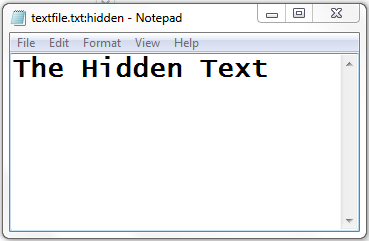
  notepad textfile.txt:hidden and press Enter.


  A new notepad will open and ask whether to create a new file or not. Click Yes and a new file is created.

Step 4
  Write the data you want to hide. Next Save (Ctrl+S) the file and close the notepad.

Step 5
  Browse to the file location and Open textfile.txt you cannot see any data in the file.It should be completely blank
Step 6
  In order to read the hidden content. Open command prompt and type notepad textfile.txt:hidden (same command) and press Enter.


Thursday, 3 November 2011

HIDE/UNHIDE FILES AND FOLDERS USING COMMAND PROMPT FROM WINDOWS


Now you can easily hide your files or folders using Command Prompt. It will be impossible for others to find the file or folder unless they know the file name or folder name.The most important thing is that, once hidden with this method, the files/folders cannot be viewed by any search options even if you click "Show All Hidden Files and Folders".
You can secure your documents easily by this method. Make sure you remember the file or folder name!
Hiding the most wanted files and folders is very important nowadays and it's really a tedious job too. Now i am going to deliver you a the trick to make this tedious job an easy one.

Hide folders/files through command prompt
HOW TO HIDE FILES AND FOLDERS?

For Example: Suppose if you want to hide a folder named "Photos" and this folder is stored in your E drive. You think that it should not be seen by strangers who use your PC.
For that you need to follow the following instructions
1.     Press windowkey+R. [ run command dialog box appears]
2.     Now type "cmd" and hit enter. [a command prompt window displays]
3.     Now type "attrib +s +h E:\Photos" and hit enter.
Here,
E:\ = Drive name
Photos = Folder name
The folder "Photos" will be hidden (Note: It cannot be viewed by any search options)


HOW TO UNHIDE FILES AND FOLDERS?

Now If you want to make that folder appear, 
just type,"attrib -s -h E:\Photos" [ just replace '+' with '-' on both flags 's' and 'h' ]
Note : Use this only for educational and security purposes.

Share it

Twitter Delicious Facebook Digg Stumbleupon Favorites More